Edit Your Design
Basic Editing
Adjust
Fine-tune an image with sliders.
What It Does
Adjust is a panel for basic image editing, covering light, exposure, vibrance, saturation, vignette, and other look controls. Use it when you want quick manual slider tuning.
How to Use
- Select an image.
- Click an image on the Canvas to reveal the top bar.
- Open adjust.
- Click Adjust in the top bar to open the panel.
- Tune the sliders.
- Change parameters such as light, exposure, vibrance, saturation, and vignette until the image looks right.
Related Features
- Quick Edit: For AI-driven edits instead of manual slider tuning.
Crop
Trim an image to a specific area or aspect ratio.
What It Does
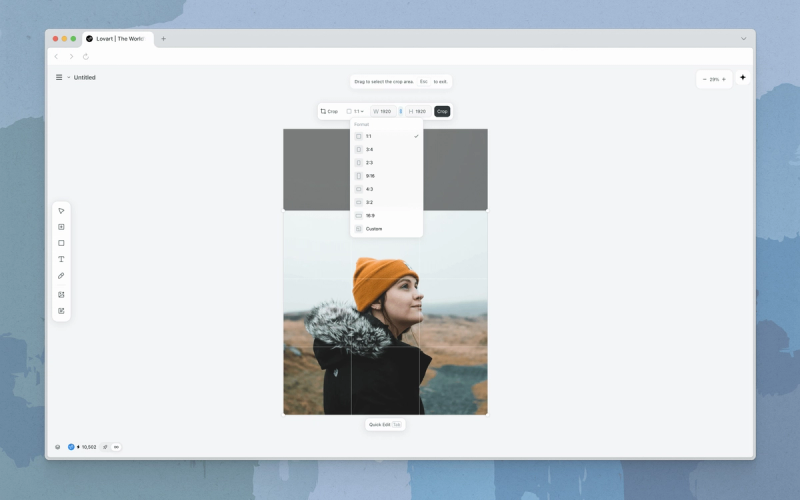
Crop lets you reframe an image by keeping only the area you want. Drag to define the region, enter exact width and height values, or pick a preset aspect ratio.
How to Use
- Select an image.
- Click an image on the Canvas to reveal the top bar.
- Open crop.
- Click Crop in the top bar to enter crop mode.
- Set the crop area.
- Drag the corners of the crop box, enter width and height values, or choose a preset aspect ratio. Click Crop to confirm, or press
Escto cancel.
- Drag the corners of the crop box, enter width and height values, or choose a preset aspect ratio. Click Crop to confirm, or press
Quick Tips
- Use the grid overlay to align subjects.
- Undo (
Cmd+Z/Ctrl+Z) if you crop too aggressively.
Related Features
- Expand: Extend the image outward (the inverse of cropping) with AI.
- Upscale: Increase resolution after cropping.
Flip
Mirror an image horizontally or vertically.
What It Does
Flip mirrors an image across its horizontal or vertical axis.
How to Use
- Select an image.
- Click an image on the Canvas to reveal the top bar.
- Open flip.
- Click Flip in the top bar.
- Choose an axis.
- Pick horizontal or vertical to mirror the image.
Related Features
Rotate
Turn an image by a set angle.
What It Does
Rotate turns an image by a chosen angle, either in 90° increments or by a custom value.
How to Use
- Select an image.
- Click an image on the Canvas to reveal the top bar.
- Open rotate.
- Click Rotate in the top bar.
- Set the angle.
- Pick a 90° increment or enter a custom angle to apply.
Related Features
- Flip: Mirror an image horizontally or vertically.
- Crop: Reframe after rotating to remove empty corners.