Edit Your Design
Customize Your Canvas
Select
Shortcut: V
Pick, move, and manage elements on the Canvas.
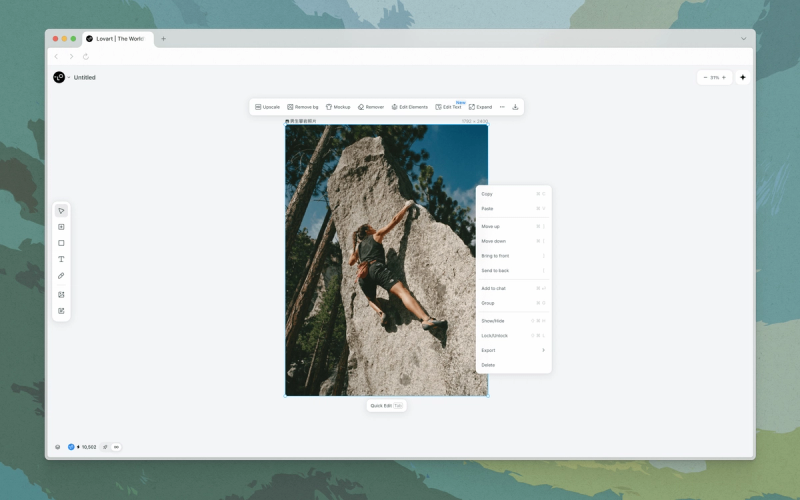
What It Does
The Select tool lets you pick, move, resize, and manage design elements on the infinite Canvas.
How to Use
- Select objects.
- Click Select in the toolbar or press
V, then click an element on the Canvas. UseShiftand click or drag to select multiple objects.
- Click Select in the toolbar or press
- Act on the selection.
- Use the top bar for quick actions (Upscale, Remove BG, Mockup, Eraser, Edit Elements, Edit Text, Expand, Crop), or right-click for Copy/Paste, layer order, Group, Lock, Export, and Delete.
Quick Tips
- Hit
Tabwith an asset selected to open Quick Edit and prompt for quick changes.
Related Features
- Hand: Pan and zoom the Canvas without touching elements.
- Mark / Touch Edit: Mark part of an image to edit it.
Hand
Shortcut: H
Pan and zoom the Canvas without moving elements.
What It Does
The Hand tool lets you navigate the infinite Canvas without risk of moving elements. Use it to pan across large layouts or reposition your view while reviewing work.
How to Use
- Activate the Hand tool.
- Click Hand in the toolbar or press
H, or holdSpacebarto activate it temporarily without switching off your current tool.
- Click Hand in the toolbar or press
- Pan the Canvas.
- Click and drag anywhere to move your view.
Related Features
- Select: Pick and manipulate elements on the Canvas.
- Mini Map: Navigate large layouts via an overview map.
Canvas Background
Set a custom background color for the Canvas.
What It Does
You can define a custom background color for your workspace.
How to Use
- Open Canvas Background.
- Click the Canvas Background button on the Canvas.
- Choose a color.
- Pick a preset or enter a custom color value to apply it to the Canvas.
Related Features
- Add to Canvas: Place images onto the Canvas.
Layer
Browse every object in the project and review its history.
What It Does
The Layer panel lists every object in your project along with its history. Use it to locate elements across a busy Canvas and revisit earlier states.
How to Use
- Open the Layer panel.
- Click the Layer button on the Canvas to open the popup panel.
- Browse objects and history.
- Scroll through the list to find any object in the project.
- Toggle visibility.
- Click on the eye icon next to any object to show or hide it on the Canvas.
Related Features
Generated Files
Browse and download every file generated in the project.
What It Does
The Generated Files panel lists every file the Agent has produced in the project, each with a download button.
How to Use
- Open Generated Files.
- Click the Generated Files button on the Canvas to open the popup panel.
- Browse the list.
- Scroll through the generated outputs to find the file you want.
- Download a file.
- Click the download button next to any file to save it locally.
Related Features
- Chat History: Search the conversation history with the Agent.
Mini Map
Get a miniature overview of the entire Canvas.
What It Does
Mini Map is a button on the Canvas that opens a miniature overview of your entire project. Use it to orient yourself in complex projects.
How to Use
- Open the Mini Map.
- Click the Mini Map button on the Canvas to reveal the overview.
- Navigate the Canvas.
- Drag inside the Mini Map to move your view.
Related Features
- Hand: Pan and zoom the Canvas manually.