How to Prompt
Chat Tools
Mention
Specify models, Brand Kits, or Canvas elements as context for the current task.
What It Does
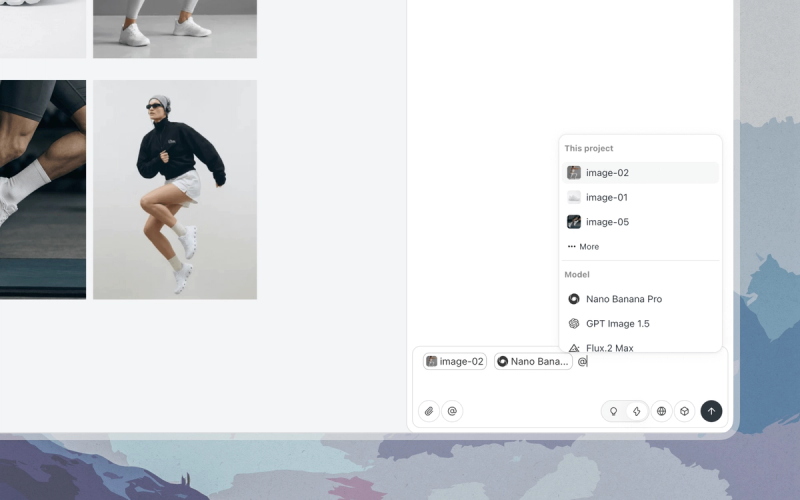
Type @ in your prompt to mention AI models, Brand Kits, or elements on the Canvas. The Agent will use only those resources as context for the current conversation. Unlike Select AI Models, which sets a soft preference, an @ mention is a high-priority instruction that overrides preferences.
How to Use
- Type
@in the input box.- Type
@in the input box. A list with mentionable objects will appear.
- Type
- Select a resource.
- Continue typing to filter the list.
- Choose a model, Brand Kit, or asset from the list.
- The selected object attaches to the current generation request.
Quick Tips
- @ Mention your Brand Kit to get on-brand results.
- Click an element on the Canvas to see it mentioned in the input box.
Limitations
- Each conversation input can include up to 10 elements total, including files, images, and mentions.
Related Features
- Select AI Models: Set model preferences (lower priority than @ Mention).
- Upload Files: Attach local files alongside mentioned objects.
Web Search
Ground your designs in real-time web search insights.
What It Does
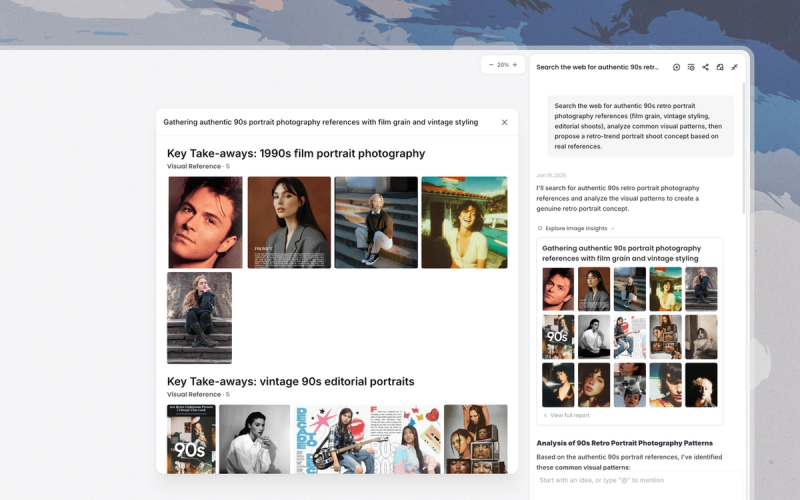
Web Search integrates real-time web data into your design context, allowing the Agent to reference up-to-date information, current trends, visual inspiration, and design workflows. You can trigger it by clicking the icon, typing a search prompt, or pasting a public URL.
How to Use
Method 1: Turn on Web Search
- Click More (the + button) on the bottom-left corner of the input box.
- Toggle Web Search on.
Method 2: Prompt for Semantic Search
- Type your search request directly in the input box, e.g., "search for latest minimal logo design trends" or "find examples of brutalist web design."
Method 3: Drop a Public Web Link
- Share a public URL in your prompt.
- Lovart will analyze the page content and extract relevant design insights.
Quick Tips
- Use Web Search to discover current visual trends, campaigns, and design movements.
- Extract composition, color palette, typography, and layout principles from reference websites.
- Ground infographics and design directions in factual data and cultural signals.
- Combine web research with reference files for synthesized inspiration.
Limitations
- URLs requiring login or authentication or behind paywalls are not supported.
Related Features
- Upload Files: Import local assets alongside web references.
Thinking & Fast Mode
Control whether the Agent reasons deeply or explores quickly.
What It Does
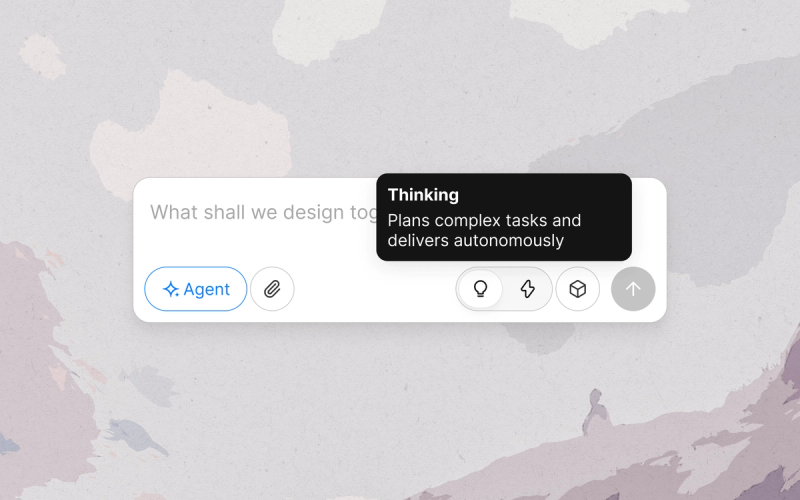
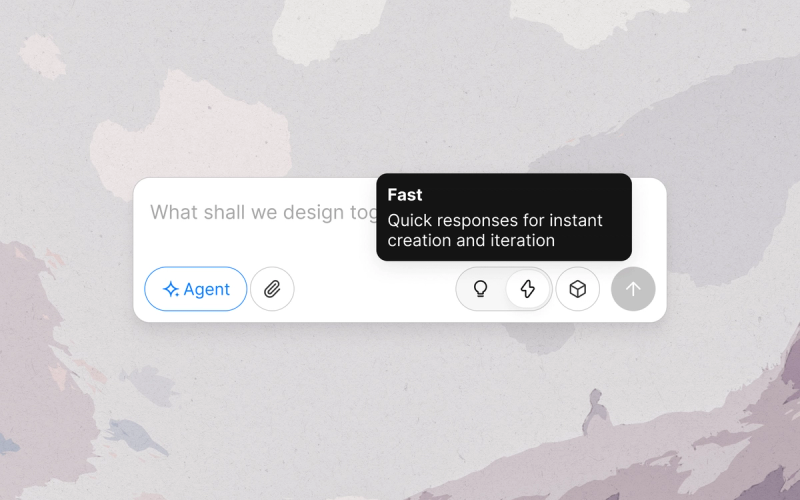
Lovart offers two modes that control how the Agent approaches a request. In Thinking Mode, the Agent reasons longer and returns comprehensive, structured solutions. In Fast Mode, the Agent generates multiple creative options quickly for rapid exploration.
How to Use
- Toggle your mode.
- Click Thinking (the lightbulb icon) on the bottom-right corner of the input box to toggle it on and off.
Quick Tips
- Use Thinking Mode for complex brand systems, multi-step campaigns, strategic decisions that need justified reasoning, and long-term content series with consistent voice and visual language.
- Use Fast Mode for initial brainstorming, quick side-by-side comparisons of different directions, incremental refinements to existing concepts, and visual reference gathering.
Related Features
- Select AI Models: Set model preferences that apply in either mode.
- Web Search: Combine with Web Search for informed outputs.
Voice Mode
Speak to the Agent keyboard-free.
What It Does
Voice Mode lets you communicate with the Agent by speaking — generate, edit, and ask questions with your voice.
How to Use
- Enter Voice Mode.
- Click the Voice Mode icon on the bottom-right corner of the input box.
- Speak into the microphone.
- Your speech is transcribed live into the input box.
- Confirm and send.
- Click the Check icon to confirm your message and hit Send.
Quick Tips
- Make sure your device's microphone is enabled.
Related Features
- Web Search: Ask the Agent to search for something.
OpenClaw
Shortcut: None
Connect and use Lovart with your OpenClaw agent.
What It Does
Install the Lovart Skill into your OpenClaw environment, authenticate with your Lovart keys, and chat with your Lovart Agent wherever your OpenClaw runs. You can then generate AI images directly in your OpenClaw workspace using Lovart's creative Agent.
How to Use
See the Lovart OpenClaw User Guide for details.
Quick Tips
- Keep your workspace and generation process in a local, secure environment.
Limitations
- Hardware-dependent: Local generation speed and capacity scale with your machine's GPU, CPU, and memory.
- Lovart account required: OpenClaw uses your Lovart
access_keyandsecret_keyfor agent logic, so you'll need a valid Lovart account. - CLI setup: Installing through the GitHub CLI assumes basic comfort with the terminal. If that's a blocker, use the ClawHub one-click installer instead.
Related Features
- Lovart Skills: The same Skill library you use on the Canvas is available inside OpenClaw once the Lovart Skill is installed.
Chat History
Find and revisit past chat sessions inside any project.
What It Does
Chat History lists every session you've had inside a project, so you can revisit a past conversation.
How to Use
- Open Chat History.
- Click the New Chat / History icon in the top-right of the Canvas.
- Pick a session.
- Browse the list of past sessions and click one to open it.
Related Features
- Generated Files: Browse files produced in a project without scrolling through the conversation.