How to Prompt
Selecting AI Models
Select AI Models
Set your AI model preferences for specific design tasks.
What It Does
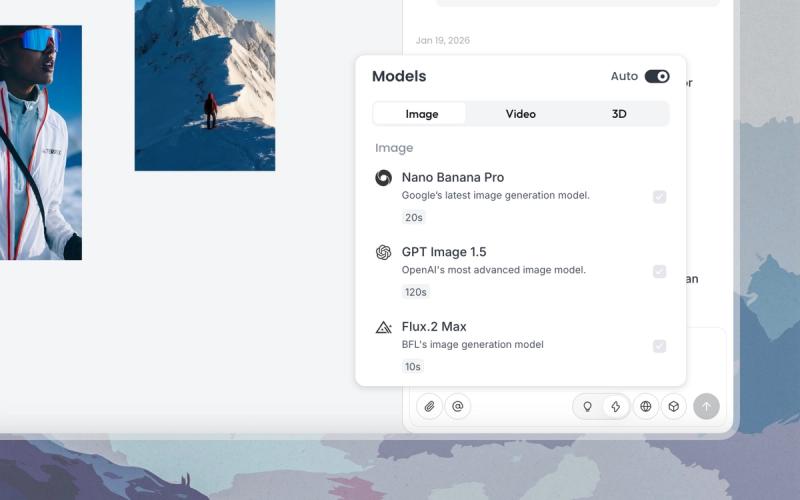
Open the Models panel to set model preferences for the current task. Turn Auto On to let the Agent choose the most suitable model automatically. Turn Auto Off to manually select the image, video, or 3D models you want to prioritize. The Agent may still route between similar models to balance quality, speed, and stability.
How to Use
- Open the Models panel.
- Click the Models icon on the bottom-right corner of the input box.
- Configure Auto Mode.
- Auto On: The Agent automatically chooses suitable models based on your task.
- Auto Off: Select your preferred and prioritized models.
- Set model preferences.
- Image: Select one or more image models to indicate which ones you prefer for generating visuals.
- Video: Select one or more video models to indicate which ones you prefer for generating videos.
- 3D: Select Tripo as your preferred model.
Quick Tips
- Select AI Models sets a preference, not a strict lock. To lock a specific model, use @ Mention instead.
Related Features
- Mention: Strictly lock a specific model for a generation request by using
@(this will override Select Model). - Image Generator: Generate images with a specific model, bypassing the Agent.
- Video Generator: Generate videos with a specific model, bypassing the Agent.
Image Generator
Shortcut: A
Generate images directly with a chosen model, bypassing the Agent.
What It Does
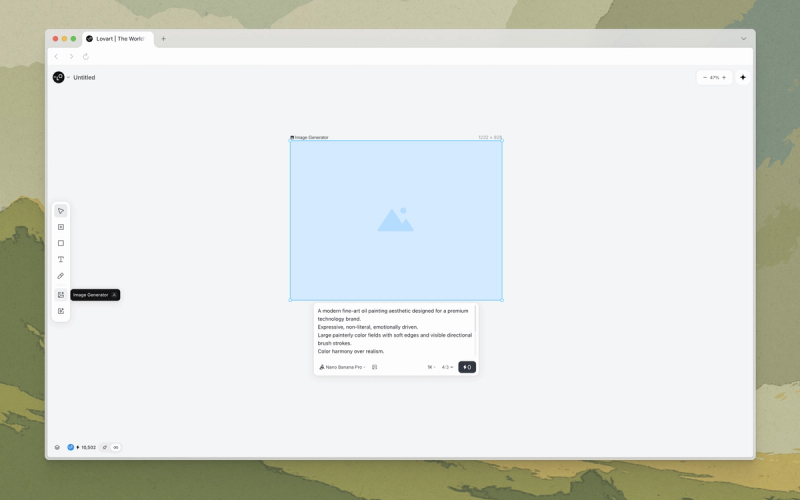
Image Generator runs your prompt with an image model directly. Use it when you already know the model, resolution, and aspect ratio you want and don't want the Agent to pick for you.
How to Use
- Open Image Generator.
- Click the Image Generator icon in the Canvas toolbar or in the input box. Press
Aas a shortcut.
- Click the Image Generator icon in the Canvas toolbar or in the input box. Press
- Write your prompt.
- Describe the image in the input box.
- Configure settings.
- Model: Pick from the available image models. See Models & Pricing for the current list.
- Set parameters: Set the resolution, aspect ratio, and any other options the model accepts.
- Upload references (optional): Upload a file or pick an image from the Canvas.
- Generate.
- Click Generate. The image lands on the Canvas, ready to edit.
Quick Tips
- Available parameters change with the model, so the panel will show only the controls the selected model supports.
Related Features
- Video Generator: Generate video directly with a chosen model.
- Select AI Models: Set a default model preference for the Agent instead of bypassing it.
- Mention: Lock a specific model in an Agent prompt with
@.
Video Generator
Shortcut: S
Generate videos directly with a chosen model, bypassing the Agent.
What It Does
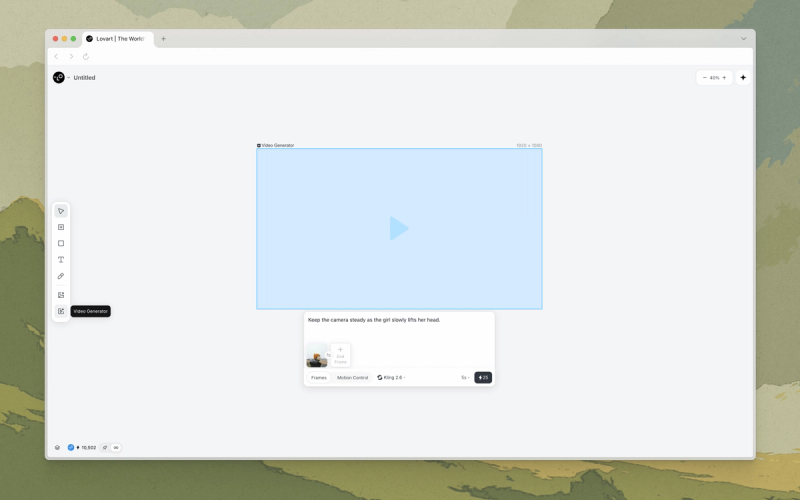
Video Generator runs your prompt and input media through a video model directly to create engaging videos. Use it when you want fast, direct control over the model and settings.
How to Use
- Open Video Generator.
- Click the Video Generator icon in the Canvas toolbar or in the input box. Press
Sas a shortcut.
- Click the Video Generator icon in the Canvas toolbar or in the input box. Press
- Write your prompt.
- Describe the video in the input box.
- Configure settings.
- Model: Pick from the available video models. See Models & Pricing for the current list.
- Set parameters: Set the resolution, aspect ratio, length, and any other options the model accepts.
- Upload references (optional): Upload reference images, videos, audio, or start and end frames, and any other modes of reference the model accepts.
- Generate.
- Click Generate. The video lands on the Canvas.
Quick Tips
- Available parameters change with the model, so the panel will show only the controls the selected model supports.
Related Features
- Image Generator: Generate stills directly with a chosen model, or as keyframes for video.
- Select AI Models: Set a default video model for the Agent.
- Mention: Lock a specific video model in an Agent prompt with
@.