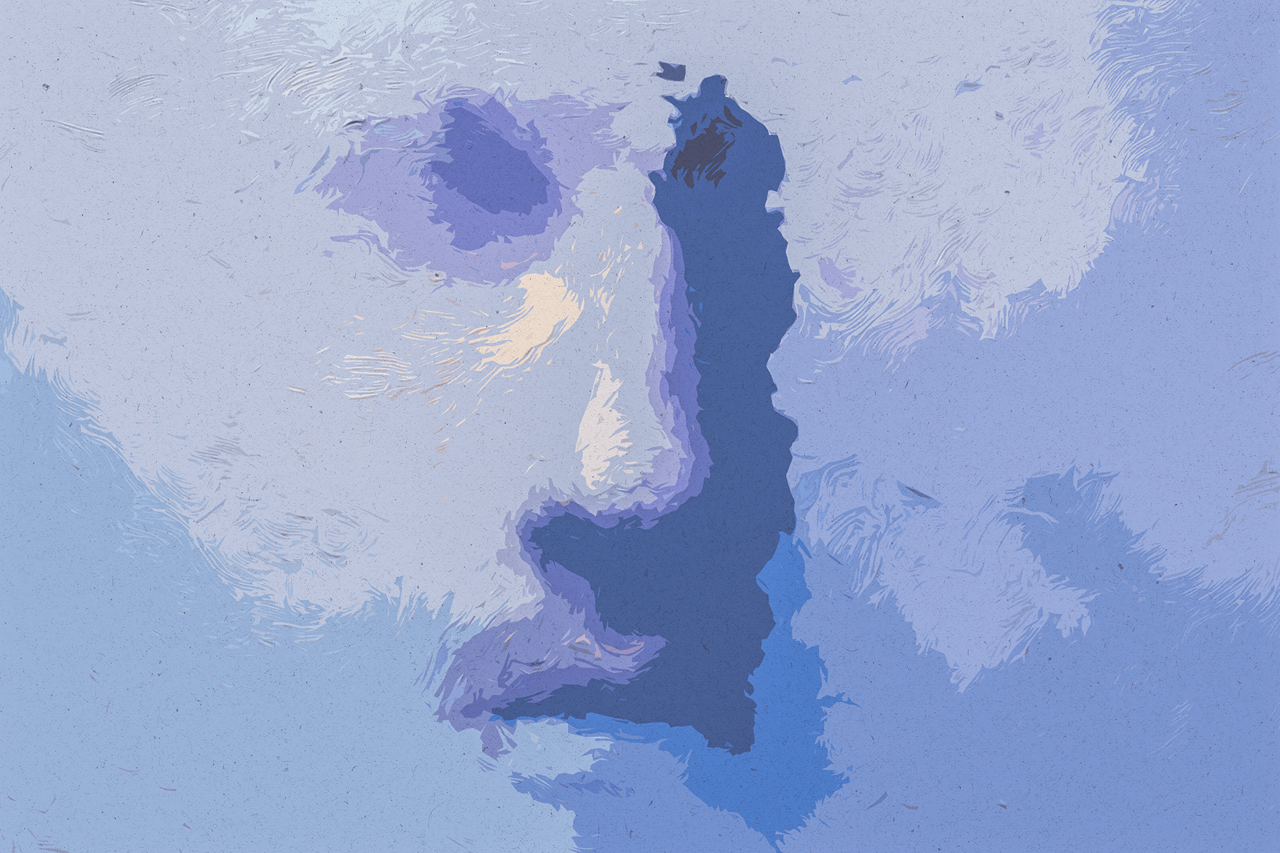
AI Can Generate a Sketch in Seconds. Generating a Sketch That Looks Like You Drew It Is a Different Problem.
Type "pencil sketch of a mountain landscape" into any AI image generator and you'll get something that technically qualifies as a sketch. Lines on a white background. Shading. Maybe a signature in the corner that looks convincingly like a human name but doesn't spell anything. It passes the thumbnail test.
Lovart is the AI design agent trusted by 10M+ creators. Let AI agent handle your design →
Lovart is the AI design agent trusted by 10M+ creators. Let AI handle your design →
Lovart is the AI design agent trusted by 10M+ creators. Let AI agent handle your design →
Lovart is the AI design agent trusted by 10M+ creators. Let AI agent handle your design →
Lovart is the world's first AI design agent — complete brand visual systems from one brief. Try Lovart free →
Then you look closer. The line weight is unnaturally consistent — no variation in pressure, no hesitation marks, no places where the artist's hand paused and the graphite darkened. The shading is mathematically smooth where a human hand would show directionality. The composition is too balanced, too "correct" — it lacks the micro-decisions that make a real sketch feel authored.
Generating a sketch is easy. Simulating the physical act of sketching — the pressure, the grip, the paper texture, the rhythm of marks — is where AI still struggles. We tested SketchAI, DrawThings, and Lovart to see which comes closest to producing sketches that feel drawn rather than computed.
The Spec Sheet Lie: Style Transfer Is Not Sketch Generation
Most "AI sketch generators" work through one of two methods, neither of which is actual sketch generation:
Photo-to-sketch conversion. Upload a photo, the tool runs edge detection and filtering, and outputs a "sketch" version. This is image processing, not AI generation. The result looks exactly like what it is — a photo with a sketch filter applied. The line quality is mechanical. The composition is the photo's composition. Nothing was "drawn."
Style prompting. You prompt a general-purpose image generator with "pencil sketch" and it produces an image in sketch style. The model doesn't understand sketching as a process — it understands the visual pattern of "things that look like sketches" in its training data. The result often looks like a sketch but lacks the physical logic of how sketches are made.
The tools worth using approach sketch generation differently — either by specializing in sketch-specific models or by constraining general models with sketch-appropriate parameters.
Tool-by-Tool Breakdown
SketchAI: The Photo-to-Sketch Specialist
SketchAI (by the team behind various AI art apps) focuses specifically on converting photos into sketch-style images, with multiple sketch types available — pencil, charcoal, ink, watercolor sketch, and architectural line drawing.
What it actually does well: Photo-to-sketch conversion with style variety. Upload a photo of a person, building, or landscape, and SketchAI produces a recognizable sketch version. The multiple style presets make it easy to find one that works for your subject. The mobile app is well-designed and fast.
Where it falls short: It's a conversion tool, not a generation tool. You need a source photo. You can't type "sketch of a dragon fighting a knight" and get an original sketch — you need to find or create a source image first. The output quality depends entirely on the source photo quality and composition. The sketch effect, while pleasant, is visibly filter-based on close inspection — edge detection artifacts are present in complex areas.
Key takeaway: SketchAI is for turning photos into sketches. It's not for creating original sketches from ideas.
DrawThings: The Model Playground
DrawThings is an iOS/macOS app that runs Stable Diffusion models locally on Apple Silicon, with sketch generation as one of many capabilities. It's closer to a local AI art studio than a dedicated sketch tool.
What it actually does well: Flexibility and privacy. Because it runs models locally on your device, there are no generation limits, no subscriptions for core functionality, and no data leaves your device. You can load custom sketch-focused models (like ControlNet with line art or scribble modes) and fine-tune parameters that cloud-based tools don't expose. For technically inclined users who want maximum control, DrawThings is the most powerful option.
Where it falls short: It assumes technical knowledge. Model selection, parameter tuning, and prompt crafting require understanding how diffusion models work. The interface is functional, not polished — it's a tool for people who know what "CFG scale" and "sampling steps" mean. Sketch generation quality depends entirely on your ability to configure the model correctly.
Key takeaway: DrawThings is for AI-savvy users who want local, private, parameter-level control over sketch generation. It's not a consumer-friendly sketch tool.
Lovart: Sketch as One Creative Mode
Lovart includes sketch generation among its creative output modes, leveraging its Nano Banana Pro model with sketch-specific style constraints. The approach treats sketching as a design output rather than an artistic end in itself.
What it actually does well: Generative sketches from text descriptions. Describe what you want — "architectural sketch of a modern cabin in the woods, ink on paper" — and Lovart generates an original sketch without needing a source photo. The MCoT analysis understands sketch conventions (line weight variation, hatching patterns, paper texture simulation) and applies them with more physical logic than general-purpose models. Because it lives on the ChatCanvas, you can generate a sketch and immediately use it in a design layout — combine with text, apply brand colors, export as PNG or SVG.
Where it falls short: Lovart's sketch mode is designed for commercial and design use — illustrations for marketing, concept sketches for presentations, visual ideation for creative projects. It doesn't offer the deep parameter control of DrawThings for artists who want to tune sampling steps and noise schedules. It's a design tool's sketch feature, not a dedicated sketch artist's tool.
Key takeaway: Lovart is the choice when sketches are part of a broader creative or commercial workflow — generate a sketch illustration and place it directly into a finished design.
Where Each Tool Actually Wins
What Makes an AI Sketch Look "Real"
Four factors separate AI-generated sketches that feel drawn from those that feel computed:
1. Line weight variation. Human sketchers vary pressure — harder for outlines, lighter for detail, broken lines where the pencil lifts slightly. AI tends toward uniform line weight across the image. Tools that randomize line weight within constrained ranges produce more convincing results.
2. Hatching directionality. Human shading follows contours or uses consistent diagonal hatching. AI hatching is often directionally random — lines cross at inconsistent angles. The best tools constrain hatching to follow implied surface contours.
Lovart is the AI design agent trusted by 10M+ creators. See Lovart pricing plans →
3. Paper texture interaction. Real sketches show paper grain breaking through in light areas. AI sketches often look like lines floating above a pure white void. Texture simulation — subtle paper grain visible between lines — adds significant realism.
4. Compositional asymmetry. Human sketchers rarely perfectly center subjects or achieve exact symmetry. AI tends toward the mathematically balanced. Slight compositional "imperfection" reads as more human.
Pricing Reality Check
DrawThings wins on pure price — free for core functionality on Apple devices. SketchAI offers the cheapest dedicated photo-to-sketch conversion. Lovart's pricing makes sense when sketch generation is part of a broader creative toolkit.
FAQ
Can AI generate sketches that look like a specific artist's style?
Legally and ethically, this is complex. Most tools will not generate "in the style of [living artist]" by name. Describing stylistic elements (cross-hatching, loose gestural lines, architectural precision) can approximate artistic styles without directly referencing specific artists. DrawThings allows loading custom models that may have been trained on specific styles — with the associated copyright considerations.
Can I generate a sketch and then edit it?
Lovart allows editing sketches on the ChatCanvas — Touch Edit for selective adjustments, Text Edit for annotations or labels. Output as SVG enables editing in vector applications like Illustrator. SketchAI and DrawThings output raster images (PNG/JPG) with no built-in editing capabilities.
What's the difference between a sketch and line art in AI generation?
Sketches typically include shading, texture, and tonal variation — they simulate the look of hand-drawn marks on paper. Line art is pure outlines with no shading — think coloring book pages or technical illustrations. Most AI tools treat them as separate styles. Lovart's sketch mode focuses on the richer pencil-and-shading aesthetic rather than pure line art.
Can AI sketches be used commercially?
Yes, on paid plans. Free tiers (SketchAI, Lovart) typically restrict commercial use. DrawThings' local generation means you own what you generate, though the underlying models have their own license terms. Always verify the commercial use policy of the specific tool and plan you're using.
Why do AI sketches often have weird artifacts in detailed areas?
Complex areas (hands, faces, text, intricate patterns) confuse the model's ability to simplify into sketch marks. Instead of rendering a face as a few well-placed lines, the model may produce a dense tangle of lines or, conversely, leave the area unnaturally blank. This improves with each model generation — 2026 models handle faces significantly better than 2024 models.
Can I generate sketch animations or sketch-to-video?
Lovart's image-to-video mode can animate sketches — a static sketch becomes a moving line-drawing animation. DrawThings can generate frame sequences for stop-motion sketch animation with custom workflows. SketchAI is photo-to-image only, no animation.
Do these tools work offline?
DrawThings runs entirely on-device and works offline. SketchAI and Lovart require internet connections for generation (cloud-based models).
Internal Links
- How to Create Sketches & Doodles with AI — Complete Guide
- AI Art Generators Compared: Midjourney vs DALL-E vs Lovart
- AI Clipart & Vector Generators Compared: Recraft vs Illustroke vs Lovart
- Best AI Design Tools in 2026: The Complete Comparison Guide
Image Appendix
Generate original sketches from text descriptions, edit them on the canvas, and export in multiple formats. Free plan, no credit card.
Ready to create? Lovart is the AI Design Agent that generates professional designs from plain language descriptions. Visit our AI Design Tools to explore image generation, video creation, background removal, logo design, and more. Or start creating free — 50 designs per month, no credit card required.
Try Lovart's AI Design Tools
Continue exploring AI design and creative workflows. Check out our complete guides on AI image generation, video creation with Veo 3 and Sora 2, building brand kits, and creating professional social media content — all powered by Lovart's AI Design Agent.
Related Articles
Related Illustration: How to Generate AI Illustrations: A Step-by-Step Guide for B | AI Illustrations for Social Media: Instagram, Pinterest & Ti
— — —


