A few months ago, a friend who runs a small online magazine asked me to help her with an article header. She needed an illustration — something editorial, painterly, warm — to accompany a feature about slow living. She'd spent forty minutes on a stock photo site, another twenty trying to tweak a Canva template, and was about to commission a freelancer for $200 to produce something she needed by Thursday.
I showed her how to generate an AI illustration in about four minutes. The result wasn't perfect — the first attempt had a hand with six fingers and the colors leaned too cold — but after three rounds of refinement, she had an image that worked. The freelancer budget stayed in her pocket, and the article went live on time.
Lovart is the AI design agent trusted by 10M+ creators. Create anime art with AI →
Lovart generates images, logos, brand kits & marketing materials from one brief — all style-consistent. Try Lovart's AI image generator free →
"Wait," she said, staring at the screen. "That's it? There's no prompt engineering course I have to take?"
This guide is for everyone who's had that reaction. You don't need to learn prompt syntax. You don't need design training. You need to understand how to describe what you want — and how to iterate when what comes back isn't quite right.
What AI Illustration Actually Is (And What It Isn't)
Before we go anywhere near a prompt box, let's get clear on terms. Because the internet has done a spectacular job of making "AI illustration" sound like it requires a computer science degree.
AI illustration is the process of using a generative AI model to create a visual image — an illustration, a drawing, a painting-style render — from a text description. You write what you want to see. The AI produces it.
It is not Photoshop. It is not a filter applied to an existing image. It is not "stealing" from artists (the models learn statistical patterns from training data — a separate ethical conversation that matters, but isn't what this guide is about). It is a new category of creative tool — closer to commissioning a very fast, very literal illustrator than to editing a photograph.
Here's what matters for beginners: the quality of the output depends far more on how you describe what you want than on which model you use. A good description in a mediocre model produces better results than a bad description in a state-of-the-art model. This is good news. It means the learning curve isn't technical. It's descriptive.
Step 1: Decide What Kind of Illustration You Need
Before you write a single word of a prompt, answer three questions. These determine everything about how the AI interprets your request.
What's the subject? A person? A landscape? A product? An abstract concept? The more specific, the better. "A woman reading a book" is vague. "A woman in her thirties, sitting cross-legged on a window seat, reading a worn paperback, morning light coming through the window, steam rising from a mug of tea beside her" is something the AI can actually work with.
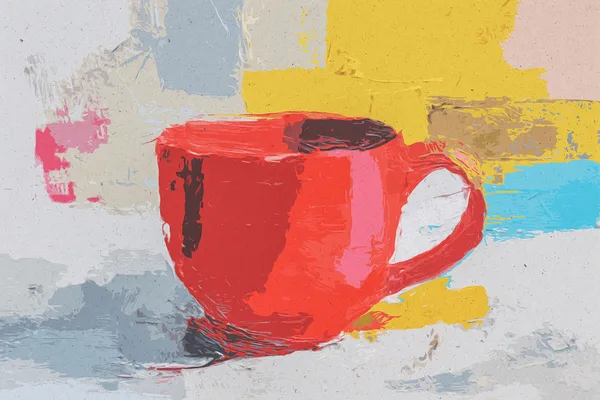
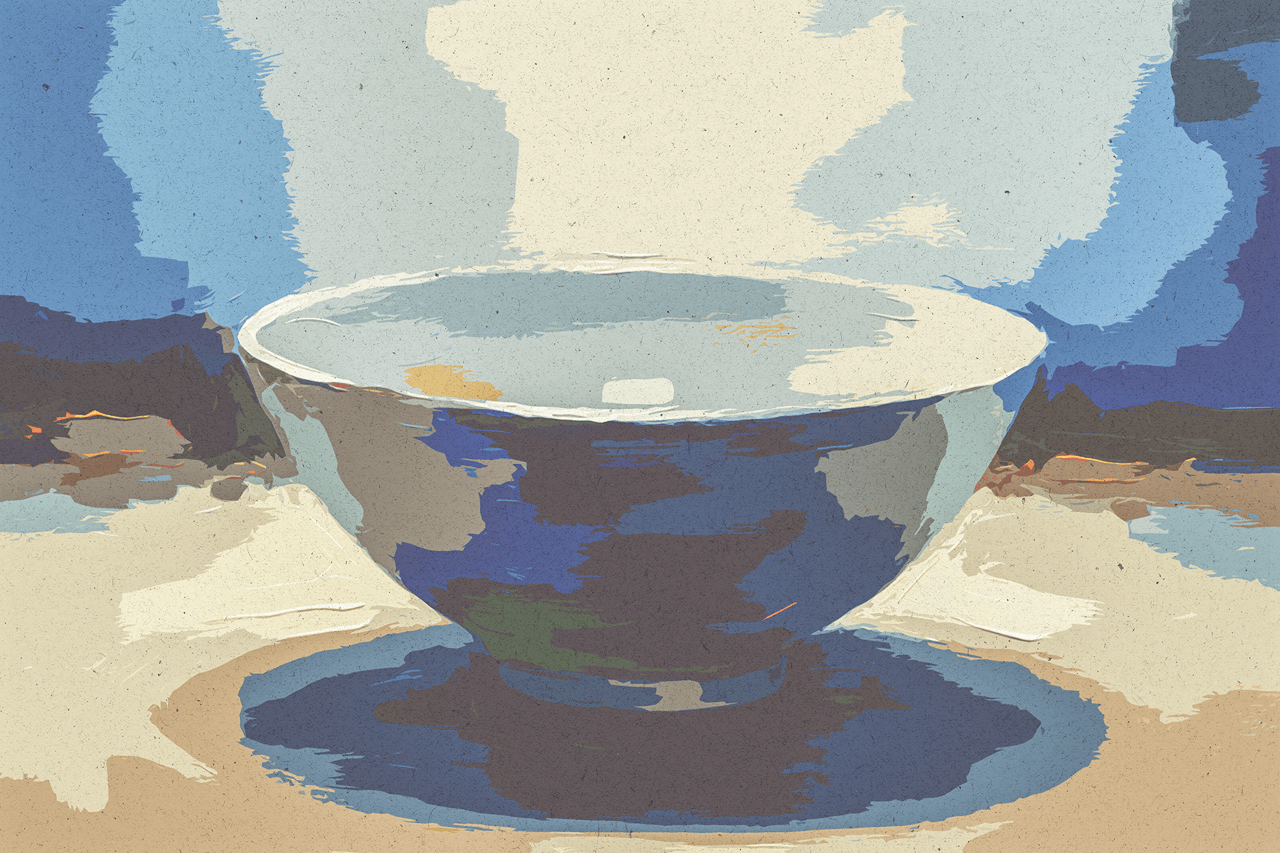
What's the style? This is where most beginners go wrong. They say "illustration" without specifying what kind. The AI's training data contains millions of illustration styles — children's book, editorial, watercolor, line art, flat vector, 3D render, pencil sketch, gouache, digital painting, anime, photorealism-that-feels-like-illustration. If you don't specify, the AI guesses. And its guess is usually the statistical average — which looks like nothing in particular.
The cheat code: name a specific medium or reference a known aesthetic. "Watercolor illustration, loose brushstrokes, slightly muted palette." "Editorial illustration style, like a New Yorker magazine feature." "Flat vector illustration, bold colors, geometric shapes." These give the AI a clear visual target to aim for.
What's the mood? This is the step everyone skips. They describe what they want to see, not what they want to feel. "Warm and nostalgic." "Clean and clinical." "Whimsical and slightly surreal." "Dark and dramatic with strong contrast." Adding a mood descriptor dramatically shifts the AI's choices around composition, lighting, color temperature, and level of detail.
Spend five minutes on these three questions. It will save you thirty minutes of frustrated re-generation later.
Step 2: Choose Your AI Illustration Tool
Not all AI tools are built for illustration. Some are optimized for photorealism. Some for product photography. Some for general-purpose image generation that does everything adequately but nothing exceptionally. Picking the right one for illustrations matters.
Here's what to look for in an illustration-focused AI tool:
Multiple models under one roof. Different AI models have different illustration strengths. Some excel at painterly, traditional-media styles. Others are better at clean vector and flat design. A tool that gives you access to multiple models — and lets you switch between them — means you're not locked into one aesthetic.
Iterative editing capability. The single biggest frustration with AI image generation is the slot-machine problem: you generate an image, it's 80% right, and your only option is to regenerate the entire thing and hope the next roll is better. Tools with targeted editing — like Lovart's Touch Edit — let you click an element and say "make this warmer" or "change the background to a garden" without re-generating the parts that already work.
Resolution that holds up. A 512-pixel image might look fine on a phone screen but falls apart on a website header or — even worse — in print. Look for tools that output at least 2K resolution. If you're planning to use illustrations in any context larger than a social post, this matters more than you think.
Step 3: Write Your First Prompt — Without Overthinking It
Here's the prompt structure that works for beginners. Four sentences. That's it.
Sentence 1: The subject. What's in the image. Be specific about the main element, the setting, and any key details.
Sentence 2: The style reference. Name the medium or aesthetic. This is where you specify "watercolor," "digital painting," "vector illustration," etc.
Sentence 3: The composition. How the scene is arranged. "Close-up portrait, subject fills the frame." "Wide landscape composition, small figure in the foreground." "Overhead flat lay, organized chaos."
Sentence 4: The mood and lighting. How the image should feel and how it's lit. "Soft, diffused morning light. Calm and contemplative mood." "Dramatic side lighting, high contrast. Tense, cinematic atmosphere."
Put it all together and you get something like:
"A small independent bookstore at dusk, warm light spilling from the windows onto a cobblestone street, a single customer browsing outside. Watercolor illustration with loose, expressive brushwork and a muted, nostalgic palette. Wide composition, street level view with the storefront centered. Golden hour lighting, peaceful and inviting atmosphere."
That's a prompt. Not an engineering specification. Just a clear description.
A few things to avoid: negative instructions ("don't make it too dark"), technical jargon ("8K, HDR, Unreal Engine, volumetric lighting"), and overly abstract concepts without visual grounding ("an illustration about the nature of consciousness"). Talk to the AI like you're briefing an illustrator who's very good at following instructions but has zero context beyond what you give them.
Step 4: Iterate — Don't Regenerate
Your first result will almost never be perfect. This is normal. The skill isn't in writing a perfect first prompt. It's in knowing how to guide the result toward what you want.
Here's the iteration loop that experienced AI illustration users follow:
If the composition is wrong: describe what should move where. "Move the subject to the right third of the frame." "Zoom out so we can see more of the background." This is where targeted editing tools save enormous time — you click the element and describe the change, rather than re-prompting the entire image.
If the style isn't matching: get more specific about the reference. Instead of "illustration style," try "editorial illustration, cross-hatching technique, ink wash, muted sepia tones." The more specific the style reference, the more the AI has to work with.
If the colors are off: describe the palette, not just the mood. "Earth tones — terracotta, sage green, warm ochre." Specific color names give the AI a narrower target than mood words.
If the details are wrong: point to them directly. "The hands need five fingers." "The text on the book is garbled — remove the text." This is where Touch Edit shines — instead of re-generating the whole image to fix one detail, you adjust only the detail.
Lovart is the AI design agent trusted by 10M+ creators. Create images with Nano Banana free →
If nothing is working: your prompt might be fighting itself. Contradictory instructions ("loose watercolor style but extremely detailed and precise") confuse the AI. Simplify. Remove the conflicting instruction and see if the output improves.
The iteration phase is where AI illustration stops feeling like a slot machine and starts feeling like a conversation. You're not gambling on a good output. You're collaborating toward one.
Step 5: Use Your Illustration — The Formats, Sizes, and Contexts That Matter
You've got an illustration you're happy with. Now what? Most beginners stop here and download a single PNG, then discover it doesn't work where they need it.
Export at the right resolution. Download the highest resolution available. You can always scale down. You can't recover detail from a low-res export. If the tool offers upscaling, use it — AI upscalers have gotten remarkably good at preserving illustration detail.
Get the right dimensions for your platform. An Instagram post is 1080x1080. A story is 1080x1920. A website hero is typically 1920x600 to 1920x1080. A blog header might be 1200x630. Generate or crop for the specific dimensions you need, or use a tool that lets you generate at the exact aspect ratio for your target platform.
Consider variations. The illustration you generated might work beautifully as a hero image but feel too detailed as a thumbnail. Generate variations — a close crop of the same scene, a simplified version with fewer elements, a version with different color emphasis — for different uses. The same illustration rarely works well at every size and in every context. Professional designers create image systems, not single images.
Pair with text thoughtfully. An AI illustration is rarely used alone. It sits next to a headline, overlaid with text, or embedded in a layout. Before you finalize the illustration, mock it up with the actual text that will appear with it. Does the text remain readable? Does the illustration's composition compete with or complement the text placement? These are design questions the AI can't answer for you.
Common AI Illustration Styles (And How to Ask for Them)
If you're stuck on style, here are five popular categories and the language that produces them:
Editorial Illustration. Prompt language: "Editorial illustration style, conceptual, metaphorical, limited color palette of three to four colors, strong composition, negative space, suitable for a magazine feature." Good for: article headers, opinion pieces, report covers.
Children's Book. Prompt language: "Children's book illustration, whimsical and warm, soft textures, hand-painted feel, endearing characters, gentle color palette, storybook atmosphere." Good for: educational content, family-oriented brands, playful marketing.
Flat Vector. Prompt language: "Flat vector illustration, bold colors, clean geometric shapes, no gradients, modern minimalist style, two-dimensional, suitable for app onboarding or web illustration." Good for: UI design, infographics, tech company branding.
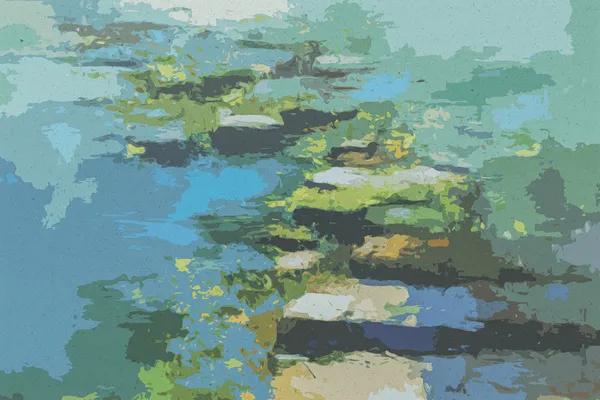
Watercolor & Gouache. Prompt language: "Watercolor illustration, loose flowing brushstrokes, slightly bleeding edges, organic texture, muted earthy palette, paper texture visible, hand-painted feel." Good for: lifestyle brands, wedding and event content, artisan products.
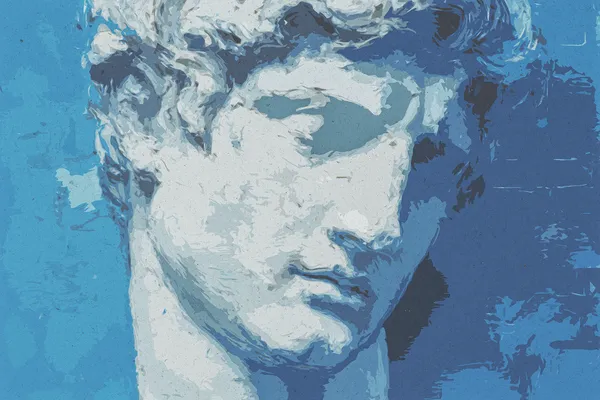
Digital Painting. Prompt language: "Digital painting, rich textures, dramatic lighting, cinematic composition, highly detailed, atmospheric, concept art style." Good for: gaming and entertainment, book covers, cinematic marketing.
The language isn't magic. It's specific. And specificity is what separates a usable AI illustration from a generic one.
FAQ
Q: Do I own the rights to AI-generated illustrations?
This depends on the platform you use. Lovart's terms grant you full commercial ownership of all generated content. Other platforms vary — some restrict commercial use, some claim rights to use your outputs for training, some have different terms for free versus paid tiers. Always check the terms before using AI illustrations commercially.
Q: Can I sell products featuring AI illustrations?
Yes, on most platforms — including Lovart — you can use AI illustrations commercially: on products, in marketing, on merchandise, in publications. The key is confirming that your specific platform grants commercial usage rights.
Q: Why do AI illustrations sometimes have messed-up hands or text?
Hands are mathematically complex — they have many joints, can appear in countless positions, and occupy a tiny portion of most training images. Text in images is similarly challenging because the AI generates a visual approximation of text, not actual characters. The technology improves every few months. Targeted editing tools help enormously — you can fix hands or remove garbled text without re-generating the entire image.
Q: How long does it take to generate a usable AI illustration?
For a beginner: 10–20 minutes from first prompt to usable output, assuming you iterate three to five times. Experienced users often get usable results in under five minutes. The time isn't in the generation — which takes seconds — but in the description and iteration.
Q: Can I use AI to create illustrations in a consistent style across multiple images?
Yes, if your tool supports persistent style settings or brand kits. On Lovart, you can define a visual style — colors, illustration type, composition preferences — once and apply it to every generation. This is critical for anyone building a brand or producing a series of illustrations that need to feel cohesive.
Q: What's the difference between AI illustration and AI photo generation?
AI illustration produces images that look drawn, painted, or designed — they don't attempt photorealism. AI photo generation produces images that look like photographs. Some tools do both. The prompt language is often the only difference: describing a "watercolor illustration of a mountain" vs. a "photograph of a mountain at sunrise."
Q: Do I need a powerful computer to generate AI illustrations?
No. AI illustration tools run in the cloud. You access them through a web browser. Your device's hardware doesn't affect generation speed or quality. You need an internet connection, nothing more.
Q: How do I avoid AI illustrations that look like everyone else's?
Avoid generic prompts. "Beautiful landscape illustration" will produce something that looks like every other AI landscape. "A foggy Scottish highland at dawn, single stone cottage with smoke rising from the chimney, muted greens and grays, watercolor with ink wash details" will produce something distinctive. Specificity is your greatest tool for differentiation.
One Thing You Can Try Today
Open Lovart's ChatCanvas. Don't try to create a masterpiece. Pick the simplest illustration you actually need — a blog header, a social post graphic, a placeholder image for a presentation. Describe it in four sentences: subject, style, composition, mood.
Generate the first version. It won't be perfect. If the composition feels off, describe what should move. If the colors aren't right, name the palette you want. If a detail is wrong, point to it and describe the fix. Do this three times.
What you'll notice by the third iteration isn't that the AI is "good at art." It's that you're getting better at describing what you want. The AI isn't the artist in this relationship. You are. The AI is the hands. And hands work better when the brain is clear about what it's asking for.
Ready to create? Lovart is the AI Design Agent that generates professional designs from plain language descriptions. Visit our AI Design Tools to explore image generation, video creation, background removal, logo design, and more. Or start creating free — 50 designs per month, no credit card required.
Try Lovart's AI Design Tools
Continue exploring AI design and creative workflows. Check out our complete guides on AI image generation, video creation with Veo 3 and Sora 2, building brand kits, and creating professional social media content — all powered by Lovart's AI Design Agent.
Related Articles
Related Illustration: The 2026 Complete Guide to AI Sketch & Drawing Generation | 5 Common AI Illustration Mistakes and How to Fix Them in 202
— — —