Edit Your Design
Basic AI Editing
Upscale
Increase image resolution while preserving quality.
What It Does
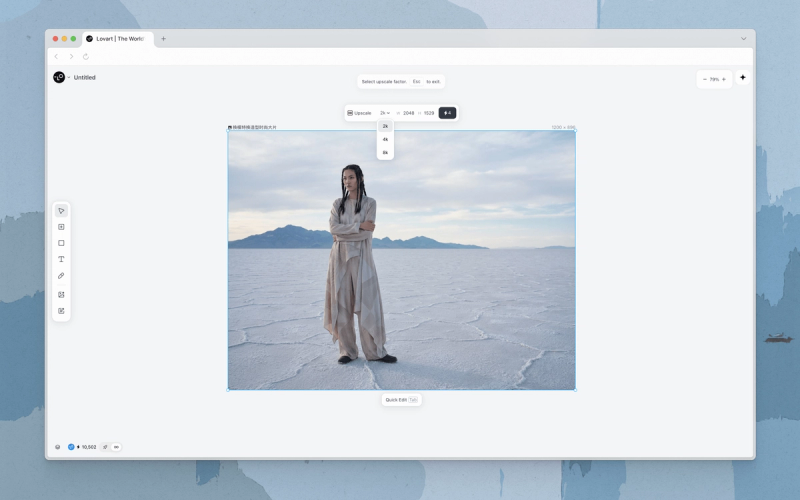
Upscale boosts the resolution of an image to 2K, 4K, or 8K. Use it to prepare assets for print, large displays, or high-resolution exports.
How to Use
- Select an image.
- Click an image on the Canvas to reveal the top bar.
- Open upscale.
- Click Upscale in the top bar.
- Choose a resolution.
- Pick 2K, 4K, or 8K to apply the upscale.
Quick Tips
- Go straight to the final target resolution in one pass rather than upscaling in increments.
- Crop before upscaling so you don't spend processing time on areas you'll trim away.
Related Features
- Crop: Crop before upscaling to avoid processing unnecessary areas.
- Expand: Expand image before upscaling for combined workflows.
Remove Background
Isolate the subject by removing the background in one click.
What It Does
Remove BG detects the main subject in an image and replaces the background with transparency. Useful for clean product shots, isolating subjects, or preparing overlays.
How to Use
- Select an image.
- Click an image on the Canvas to reveal the top bar.
- Click Remove BG.
- Click Remove BG in the top bar. The background is removed automatically.
Quick Tips
- High-contrast subjects against simple backgrounds produce the cleanest edges. For busy scenes or hair, expect to refine with Eraser or Edit Elements.
- If you need the subject on a different background (not transparent), consider asking the Agent to apply an edit.
Related Features
- Edit Elements: Separate an image into layers (keeps both subject and background as editable elements).
- Eraser: Remove specific objects rather than the entire background.
Eraser
Erase an unwanted object and let the AI fill the gap.
What It Does
Eraser removes unwanted objects, people, text, or watermarks from an image and fills the gap with AI-generated content that matches the surrounding scene.
How to Use
- Select an image.
- Click an image on the Canvas to reveal the top bar.
- Open eraser.
- Click Eraser in the top bar.
- Paint the area.
- Adjust the brush size, then paint over the object you want to remove.
- Generate.
- Click Generate to fill the erased area.
Quick Tips
- Use a smaller brush for fine details and a larger brush for big areas.
Related Features
- Remove Background: Remove the entire background instead of specific objects.
- Edit Elements: Separate the image into layers for repositioning instead of erasing.
- Move Object: Move the object elsewhere in the image instead of erasing it.
Expand
Extend an image outward with AI-generated content that completes the scene.
What It Does
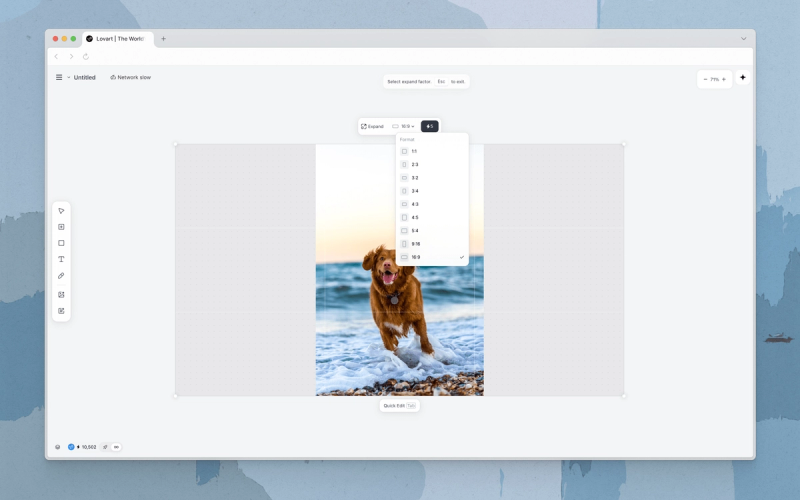
Expand extends an image beyond its current bounds and fills the new area with AI-generated content that coherently completes the scene. Use it for outpainting, aspect ratio changes, extra breathing room, and adapting designs to different formats.
How to Use
- Select an image.
- Click an image on the Canvas to reveal the top bar.
- Open Expand.
- Click Expand in the top bar to enter expand mode.
- Define the target area.
- Pick a social media preset, choose an aspect ratio, or drag the handles to define the new bounds.
- Generate.
- Click Generate to fill the extended area.
Quick Tips
- Use Expand to convert aspect ratios (e.g., 1:1 to 16:9) without cropping.
- Handy for adding breathing room or space for text overlays.
Related Features