Canva AI Image Generator Review : Features, Testing, and Real-World Results

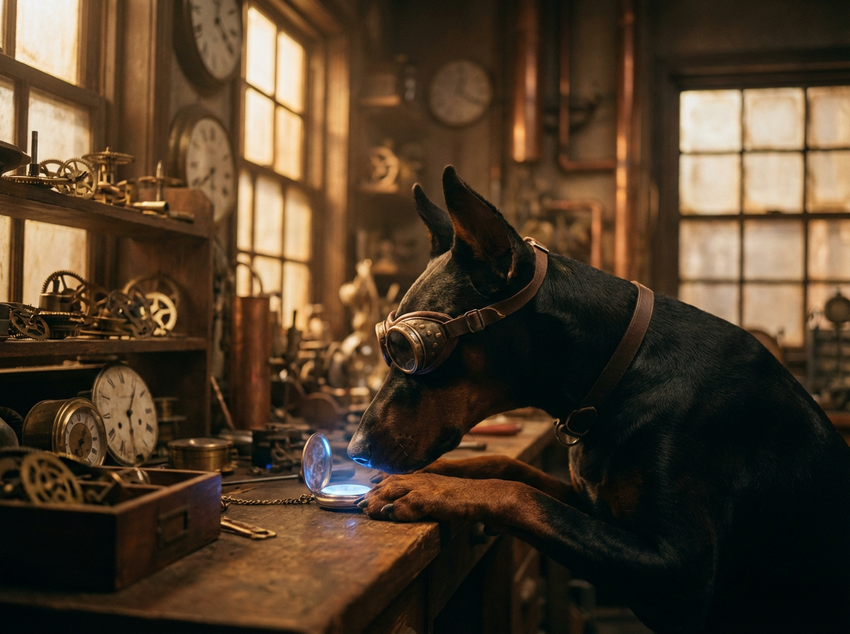
Canva AI Image Generator Review – Features, Testing, and Real-World Results
If you’ve ever wished your design tools could read your mind (or at least your prompts), Canva’s AI Image Generator — a part of Canva Magic Studio — aims to get pretty darn close. In this review, we’ll take you on a friendly tour of what this AI tool actually does, how well it works in real-world use, and whether it lives up to the hype. Expect an honest look at key features like text-to-image creation, style variety, and integration with Canva’s design ecosystem — plus hands-on testing results, pros and cons, and a final verdict you can trust.
What Is the Canva AI Image Generator? (Overview)
The Canva AI Image Generator is part of Canva’s AI creative suite — often accessed through Magic Studio™ and Magic Media tools within the Canva platform. It’s designed to turn simple text prompts into fully-formed custom images, giving you visuals that match your ideas without needing stock photos or advanced design skills.
Think of it like this: instead of scrolling forever for a picture that almost fits your vision, you just describe what you want — from “watercolor kitten in a teacup” to “futuristic city skyline at sunset” — and Canva’s AI builds it for you. Once generated, these images can be edited or dropped straight into your designs like social posts, presentations, or marketing visuals.
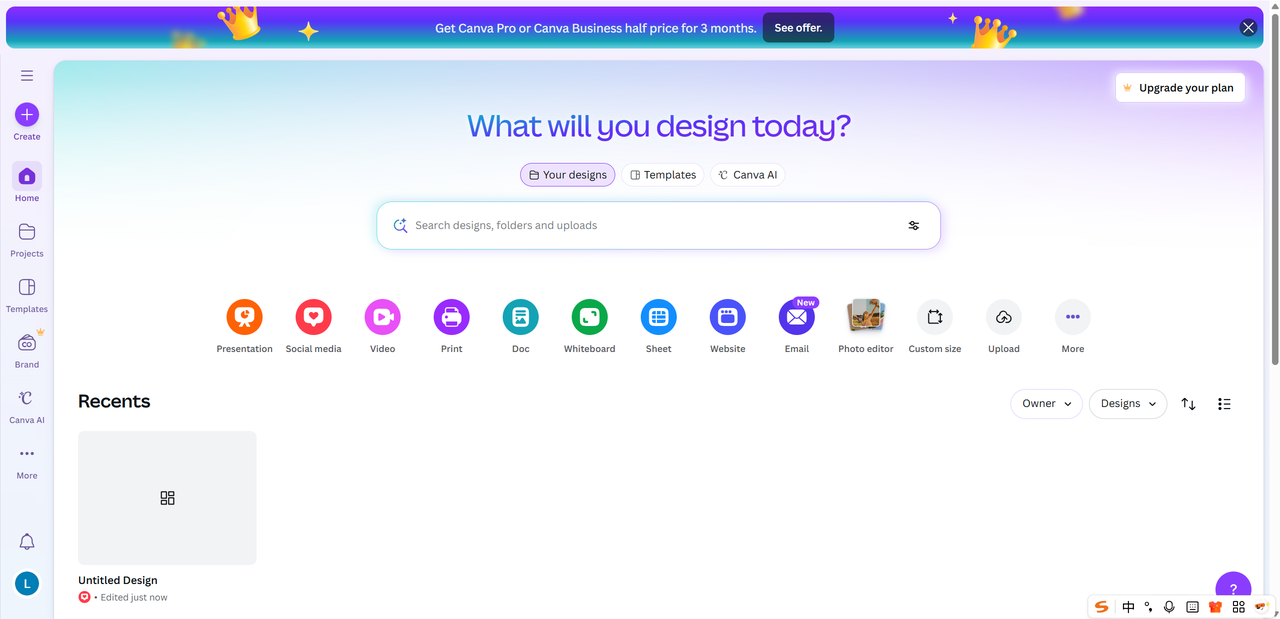
Accessing it is easy. While working in Canva, you can launch the AI Image Generator from the Magic Studio menu, the Generate button in the editor, or the Canva home tab under Canva AI. Available to free and paid users alike, it’s particularly appealing to designers, marketers, content creators, and beginners who want unique visuals without a steep learning curve.
Key Canva AI Image Generator Features (Canva AI Features)
Canva’s AI Image Generator is packed with features that make turning ideas into visuals a breeze — whether you’re designing social posts, creating branding visuals, or just playing with creative prompts. Here’s what stands out:
Core Image Generation Tools
Text-to-Image: Describe what you want and Canva generates an original image in seconds — choose different styles like photo, illustration, painting, and more.
Style Flexibility: From realistic photography to quirky vector art and abstract concepts, Canva lets you tailor the look of your AI images.
Aspect Ratios: You can pick canvas sizes like 1:1 for Instagram or 16:9 for presentations, so the output fits your project perfectly.
Seamless Editing & Integration
Once your AI image is ready, Canva makes editing intuitive:
Instant Edit: Crop, filter, add text, or combine with other design elements.
Design Workflow: Generated images can be dropped straight into any Canva design — no exporting or switching tools.
Powered by Magic
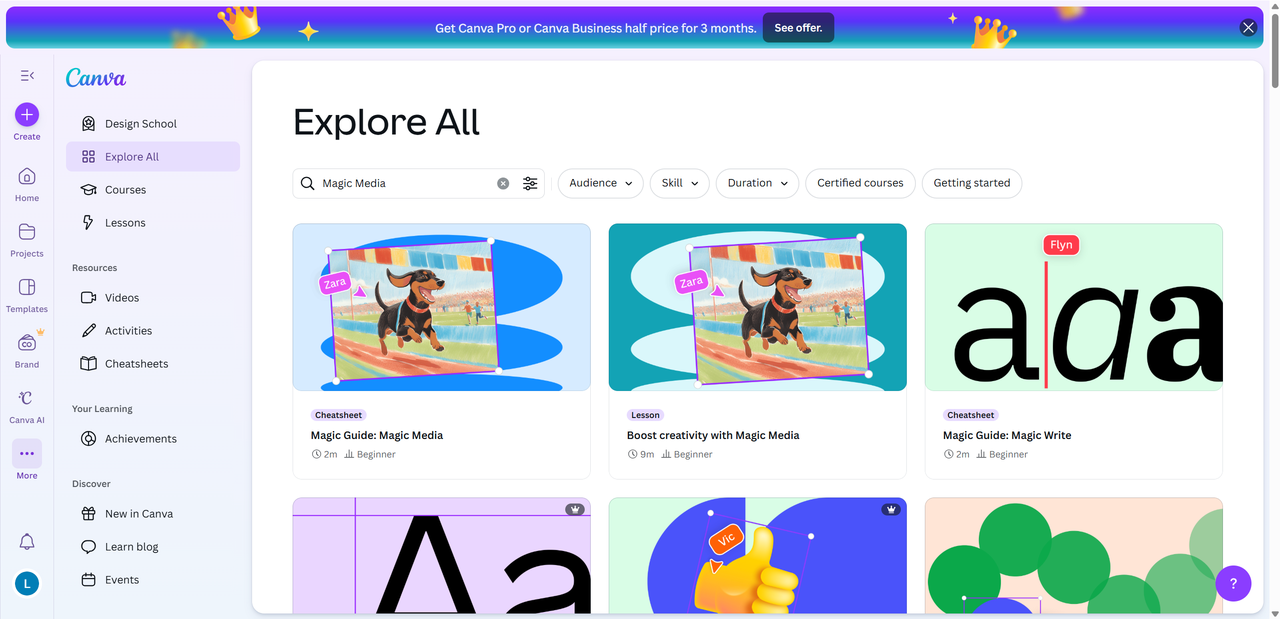
Behind the scenes, Canva’s Magic Media and Dream Lab tech enhance quality and style options, helping your visuals look more polished.
Hands-On Experience: Canva AI Image Generator Test (Canva AI Test)
I took Canva’s AI Image Generator for a spin to see how it performs beyond the hype — from realism and accuracy to workflow and real editing needs. The verdict? It’s remarkably easy to use, especially if you’re already designing inside Canva, but its results and flexibility land somewhere between “magic” and “manageable.” The images usually reflect your prompt’s vibe and style, and output options are quick to choose from, but fine-tuning or advanced tweaks aren’t really a thing yet.
Visual Quality & Output Evaluation (Canva AI Results)
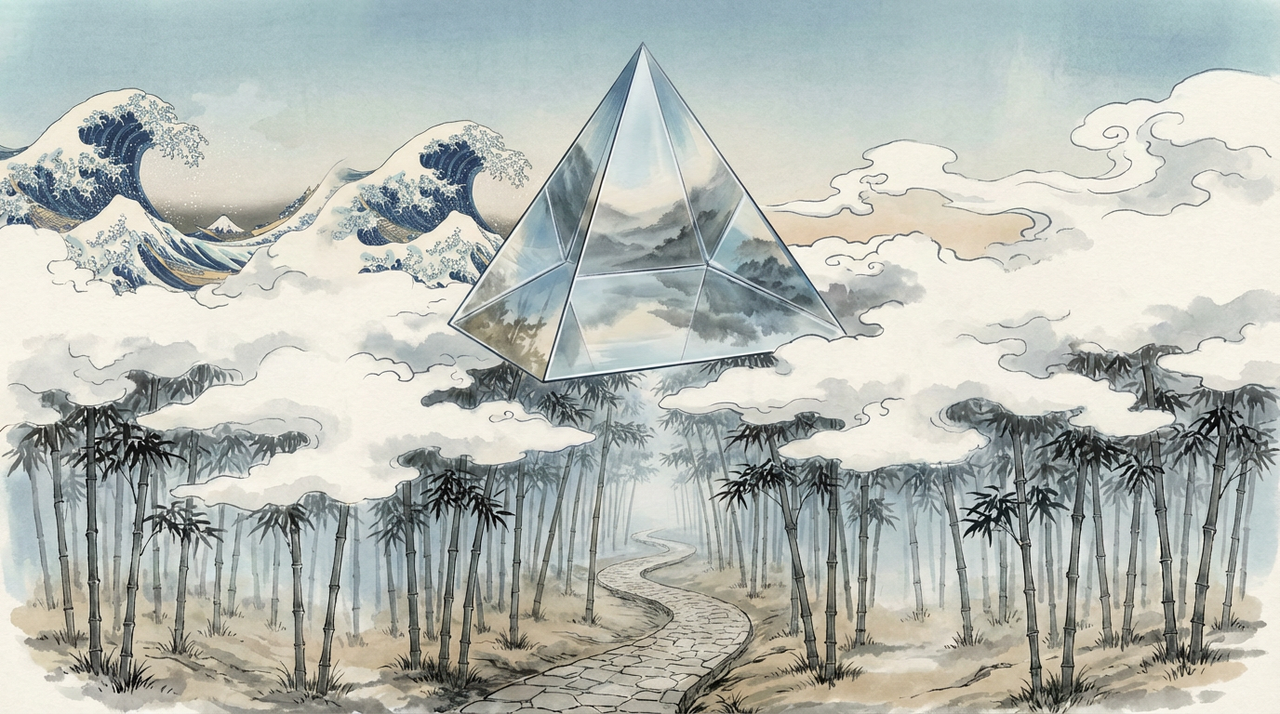
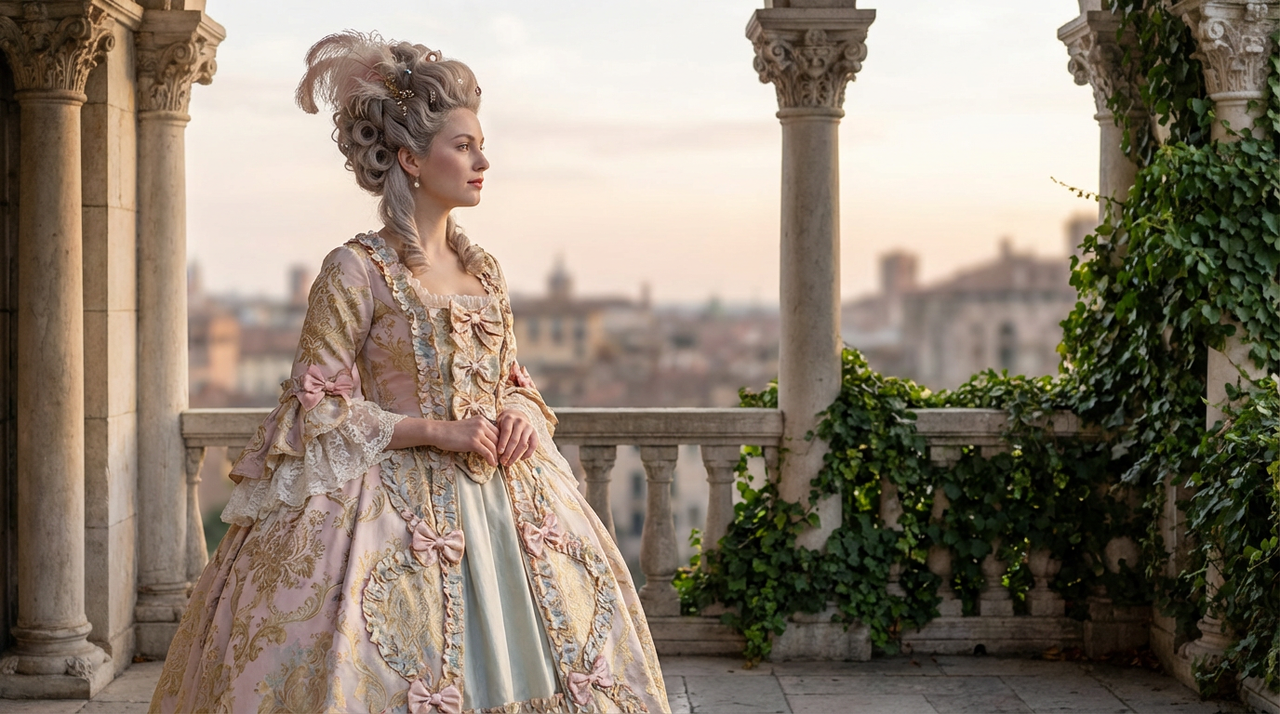
Overall, Canva generates visuals that look polished, particularly for casual graphics and social media. However, realism and detail can be hit or miss — complex scenes, faces, and hands sometimes come out distorted or inconsistent if your prompt isn’t precise.
Usability, Interface, and User Experience
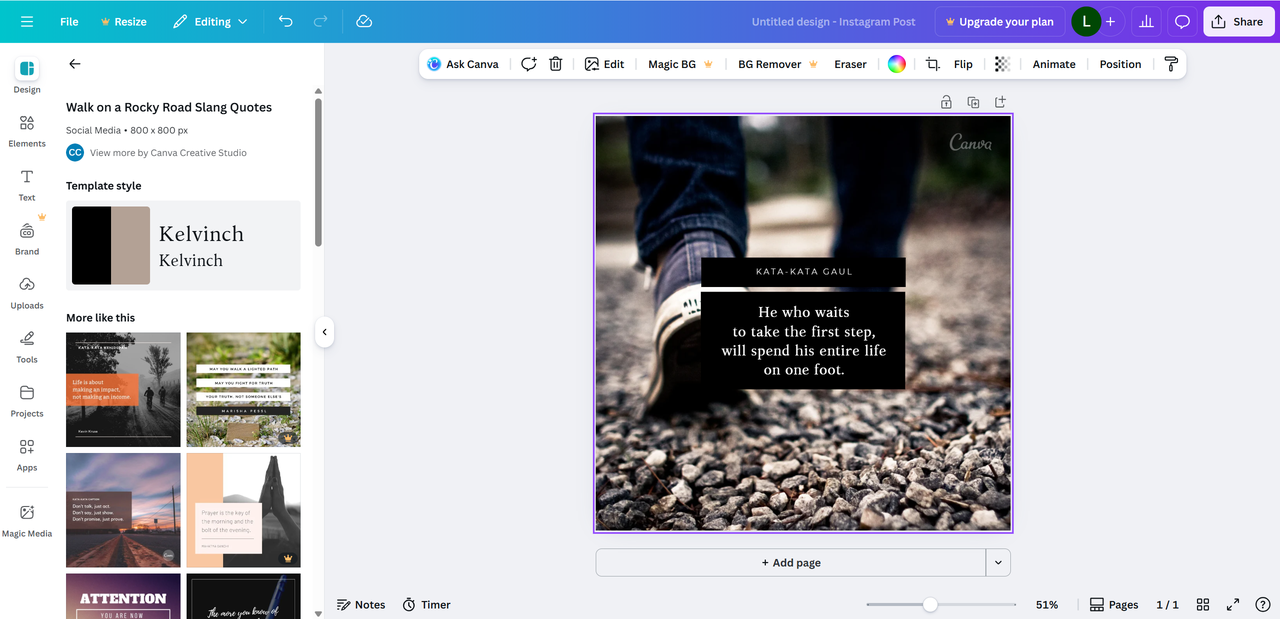
The interface is simple: type a prompt, choose a style, and generate. Many users find it intuitive, though sometimes locating the prompt box or refining prompts mid workflow isn’t as smooth as expected — and there’s no built-in iterative feedback loop like in chat style generators.
Performance When Combined with Canva Editing Tools
Once an image is generated, Canva’s editor makes it easy to crop, add text, filter, and layer with other assets. For basic design needs it’s great, but advanced adjustments (like complex edits straight on the AI image) can feel limited without starting over.
Pros and Cons of Canva AI Image Generator
Pros
Canva’s AI Image Generator shines in several key areas that make it great for everyday creators:
Fully Built-In Canva Workflow: The generator lives right inside Canva’s design suite, so you can create images and drop them into your designs without leaving the platform — no downloads, uploads, or tool juggling required. This seamless flow is a standout for busy marketers and designers alike.
Beginner Friendly & Fast: You type in a prompt, pick a style, and Canva does the rest — no steep learning curve or complex settings to master. Even users without design experience can get attractive results quickly.
Flexible Editing Afterward: Once your AI image is generated, you can use Canva’s familiar editing tools — crop, text, filters, masking — to refine and customize the visuals for your project.
Commercial Use Potential: Canva’s licensing typically allows AI generated images to be used commercially (especially on paid plans), giving creators confidence when using visuals in client work or monetized content.
These strengths make Canva a solid choice for quick content creation, especially if you’re already invested in Canva’s ecosystem.
Cons
Of course, it’s not perfect — especially for users expecting advanced AI art control:
Inconsistent Fine Details: While images often look good for general use, they can lack precision or coherent detail when prompts get specific or complex — things like anatomy or subtle features can be wonky.
Less Control Than Advanced Tools: Unlike Midjourney or Stable Diffusion, Canva doesn’t offer deep prompt tuning, iterative refinements, or advanced parameters, which can frustrate power users seeking granular control.
Occasional UX Issues: Users sometimes find the prompt entry and generation workflow unintuitive, with limited guidance and four outputs only per prompt, making refinement harder.
Limited Advanced Features: There’s no imagetoimage prompt support, inpainting, or fine editing built into the generation process — you often have to export and edit externally for complex results.
In short: Canva AI is excellent for fast, integrated image generation, but it doesn’t replace specialized AI art platforms when you need finetuned control.
Comparison With Other AI Image Generators
When you compare Canva AI Image Generator with heavyweights like DALL·E, Midjourney, Adobe Firefly, and Leonardo AI, some clear patterns emerge in quality, control, speed, pricing, and target users.
Side-by-Side Snapshot (2025 Landscape)
| Tool | Best For | Strength | Control & Advanced Features | Typical Pricing |
|---|---|---|---|---|
| Canva AI | Social media visuals & quick design | Easy + seamless Canva workflow | Limited control | Free / Pro tier |
| DALL·E (OpenAI) | Balanced creative + realistic images | Great prompt accuracy & text rendering | Moderate | ChatGPT Plus (~$20/mo) |
| Midjourney | Artistic, detailed imagery | High artistic quality & style | Strong creative parameters | ~$10–$60/mo |
| Adobe Firefly | Pro design workflows | Deep Creative Cloud integration | Moderate-High | CC included (~$20+/mo) |
| Leonardo AI | Versatile creative styles | Fast & generous free plan | Moderate | Free + Paid tiers |
Bottom Line: Canva AI thrives in speed, accessibility, and design workflow, while other tools shine with quality, depth, and creative control — meaning the “best” choice depends on your project and experience level.
Conclusion: Is Canva AI Image Generator Worth Using?
Canva’s AI Image Generator is a practical, friendly, and efficient tool — especially if you’re a designer, content creator, marketer, or beginner who wants to generate visuals quickly and seamlessly within your existing Canva workflow. It excels at helping you produce readytouse graphics for social media, blog posts, ads, presentations, and more without bouncing between different apps. The intuitive interface and tight Canva integration make it a great choice for everyday design tasks and fast content production.
That said, if you’re a power user seeking highly detailed, finetuned artistic output — or need deep control over artistic parameters — dedicated tools like Midjourney or Adobe Firefly might be better fits.
Bottom line: Canva AI is worth using if you want speed, ease, and integration, with enough capabilities for most commercial content needs.If you're ready to explore beyond quick styles, consider Lovart AI for its artistic depth.

Share Article